This documentation is available as Markdown for AI agents and LLMs. See the full Markdown index or append .md to any documentation URL.
This is documentation for the next SDK version. For up-to-date documentation, see the latest version (SDK 57).
Toggle
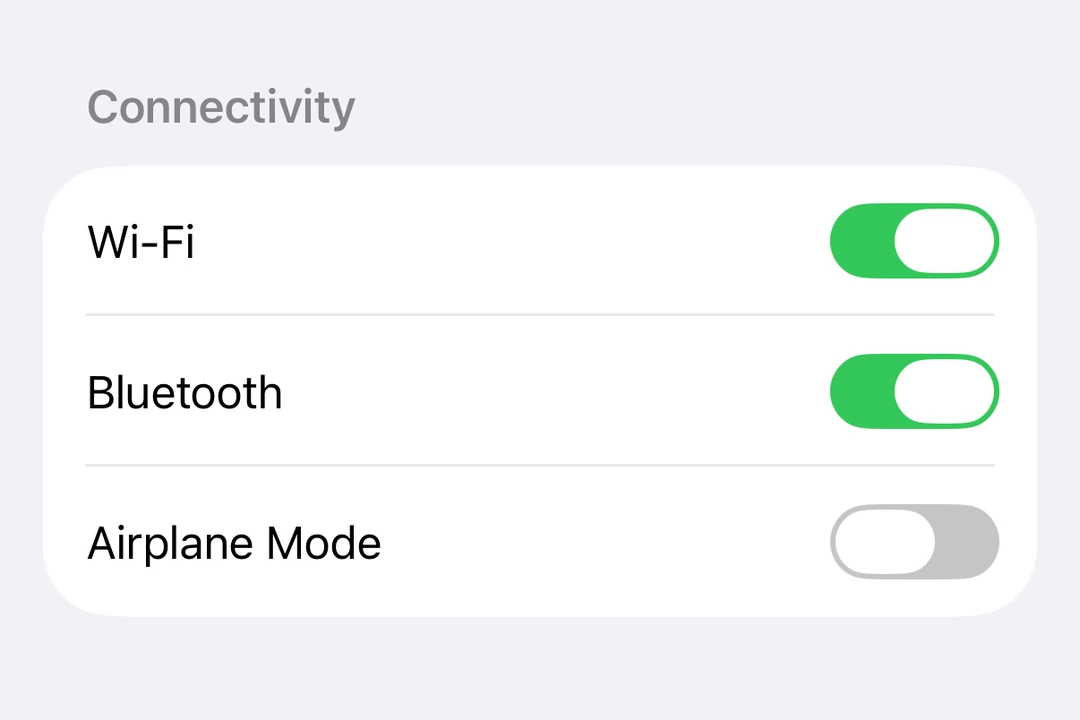
A SwiftUI Toggle component for displaying native toggles.
For cross-platform usage, see the universalSwitch— it renders the appropriate native component per platform.
Expo UI Toggle matches the official SwiftUI Toggle API and supports styling via the toggleStyle modifier.
Installation
- npx expo install @expo/uiIf you are installing this in an existing React Native app, make sure to install expo in your project.
Usage
Basic toggle
import { useState } from 'react';
import { Host, Toggle } from '@expo/ui/swift-ui';

export default function BasicToggleExample() {
  const [isOn, setIsOn] = useState(false);

  // A toggle row stretches to the width it is given, so give the host a size.
  return (
    <Host style={{ flex: 1 }}>
      <Toggle
        isOn={isOn}
        onIsOnChange={setIsOn}
        label="Enable feature"
      />
    </Host>
  );
}
Toggle with system image
import { useState } from 'react';
import { Host, Toggle } from '@expo/ui/swift-ui';

export default function ToggleWithImageExample() {
  const [airplaneMode, setAirplaneMode] = useState(false);

  return (
    <Host style={{ flex: 1 }}>
      <Toggle
        isOn={airplaneMode}
        onIsOnChange={setAirplaneMode}
        label="Airplane Mode"
        systemImage="airplane"
      />
    </Host>
  );
}
Toggle styles
Use the toggleStyle modifier to change the toggle's appearance. Available styles are: automatic, switch, and button.
Note: The
buttonstyle is not available on tvOS.
import { useState } from 'react';
import { Host, Toggle, VStack } from '@expo/ui/swift-ui';
import { toggleStyle } from '@expo/ui/swift-ui/modifiers';

export default function ToggleStylesExample() {
  const [isOn, setIsOn] = useState(true);

  return (
    <Host style={{ flex: 1 }}>
      <VStack spacing={8}>
        <Toggle
          isOn={isOn}
          onIsOnChange={setIsOn}
          label="Switch Style"
          modifiers={[toggleStyle('switch')]}
        />
        <Toggle
          isOn={isOn}
          onIsOnChange={setIsOn}
          label="Button Style"
          modifiers={[toggleStyle('button')]}
        />
      </VStack>
    </Host>
  );
}
Tinted toggle
Use the tint modifier to change the toggle's color.
import { useState } from 'react';
import { Host, Toggle } from '@expo/ui/swift-ui';
import { tint } from '@expo/ui/swift-ui/modifiers';

export default function TintedToggleExample() {
  const [isOn, setIsOn] = useState(true);

  return (
    <Host style={{ flex: 1 }}>
      <Toggle
        isOn={isOn}
        onIsOnChange={setIsOn}
        label="Custom Color"
        modifiers={[tint('#FF9500')]}
      />
    </Host>
  );
}
Custom label content
You can pass custom components as children for more complex toggle labels. Use multiple Text views where the first represents the title and the second represents the subtitle.
import { useState } from 'react';
import { Host, Toggle, Text } from '@expo/ui/swift-ui';

export default function CustomLabelExample() {
  const [vibrateOnRing, setVibrateOnRing] = useState(false);

  return (
    <Host style={{ flex: 1 }}>
      <Toggle isOn={vibrateOnRing} onIsOnChange={setVibrateOnRing}>
        <Text>Vibrate on ring</Text>
        <Text>Enable vibration when the phone rings</Text>
      </Toggle>
    </Host>
  );
}
Hidden label
Use the labelsHidden modifier to hide the label while keeping it for accessibility.
import { useState } from 'react';
import { Host, Toggle } from '@expo/ui/swift-ui';
import { labelsHidden } from '@expo/ui/swift-ui/modifiers';

export default function HiddenLabelExample() {
  const [isOn, setIsOn] = useState(false);

  return (
    <Host style={{ flex: 1 }}>
      <Toggle
        isOn={isOn}
        onIsOnChange={setIsOn}
        label="Hidden Label"
        modifiers={[labelsHidden()]}
      />
    </Host>
  );
}
API
import { Toggle } from '@expo/ui/swift-ui';
Component
Type: React.Element<ToggleProps>
A control that toggles between on and off states.
ReactNodeCustom content for the toggle label. Use multiple Text views where
the first represents the title and the second represents the subtitle.
(isOn: boolean) => voidA callback that is called when the toggle's state changes.
isOn: booleanThe new state of the toggle.
SFSymbols7_0The name of the SF Symbol to display alongside the label.