This documentation is available as Markdown for AI agents and LLMs. See the full Markdown index or append .md to any documentation URL.
TextInput
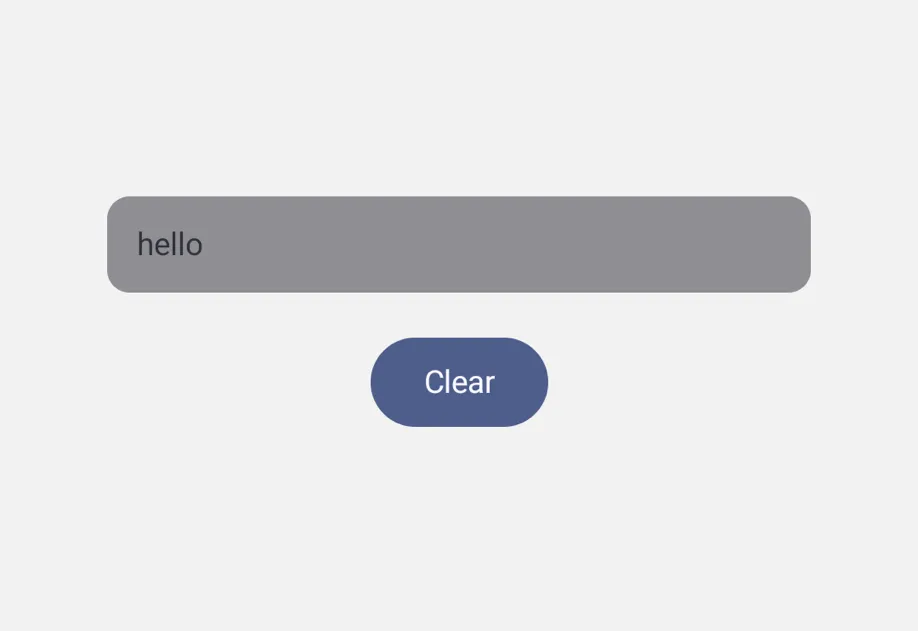
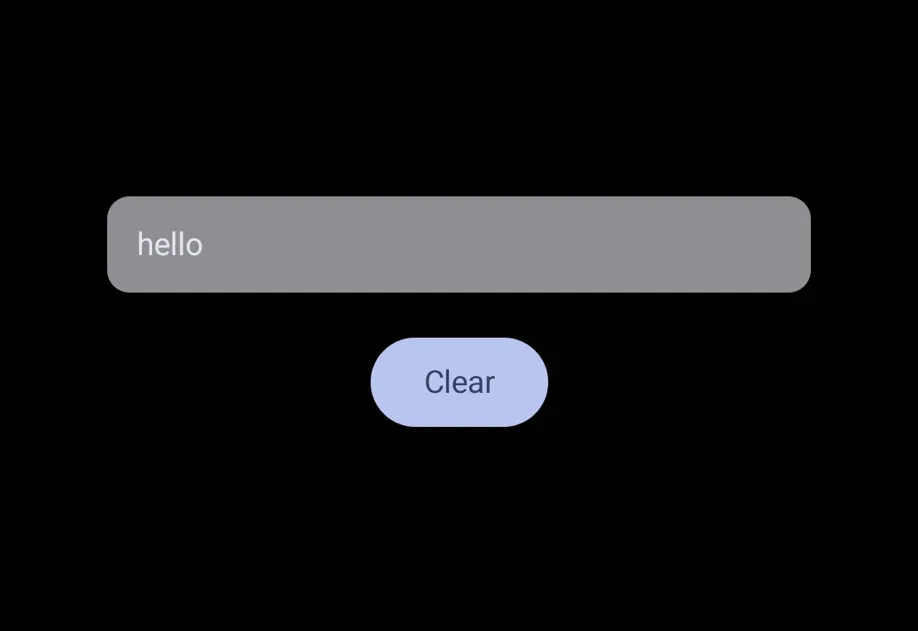
A text input backed by native SwiftUI and Jetpack Compose components, with a React Native-compatible API.
A text input that routes to TextField from @expo/ui/jetpack-compose on Android, TextField from @expo/ui/swift-ui on iOS, and React Native's TextInput on web.
The API mirrors React Native's TextInput, with two changes: value and selection are observable state objects (created with useNativeState), and onChangeText can be a worklet for synchronously updating the state on the UI thread.
Installation
If you are installing this in an existing React Native app, make sure to install expo in your project.
Usage
Uncontrolled
Omit value and the field manages its own text internally. Use onChangeText to observe edits, and use the ref for imperative actions like focus, blur, and clear.
Controlled
Pass value to drive the field from a useNativeState observable. The example below replaces Hello with World as you type.
Worklet masking
Add the 'worklet' directive to onChangeText for synchronously updating the state on the UI thread. Writes to value land without the JS-thread round-trip that can cause cursor flicker.
Note: Worklets require installing
react-native-worklets.
Unsupported React Native props
Some React Native TextInput props are not supported, because Compose's TextField or SwiftUI's TextField does not expose an equivalent, or because the prop is replaced by a different mechanism. See the API section below for the supported props. If a missing prop blocks your use case, open an issue so it can be prioritized.
API
import { TextInput, useNativeState } from '@expo/ui';
Component
Type: React.Element<TextInputProps>
string • Default: 'sentences'Controls automatic capitalization of input.
Acceptable values are: 'none' | 'words' | 'sentences' | 'characters'
AutoCompleteAutofill hint. iOS maps to textContentType; Android maps to Compose's
Modifier.semantics { contentType = ... }.
boolean • Default: trueIf false, disables autocorrect / spellcheck suggestions.
booleanIf true, the cursor is hidden.
On iOS, this is implemented via tint('transparent'), which also makes
the selection highlight invisible. If you set both caretHidden and
selectionColor, the caret-hide wins on iOS.
stringInitial text shown when the input mounts and value is not provided.
Ignored once the user starts typing or if value is set.
boolean • Default: trueIf false, the input cannot be edited. Selection is still allowed so the user can copy text out of the field.
EnterKeyHintHTML-style hint for the keyboard return key. Maps to returnKeyType.
When both are set, returnKeyType wins.
InputModeHTML-style hint for the keyboard variant. Maps to keyboardType. When
both are set, keyboardType wins.
KeyboardTypeOptions • Default: 'default'Determines which keyboard variant is shown.
Lacking native support:
- iOS:
'visible-password'falls back to the default keyboard. - Android: iOS-specific values (
'ascii-capable','numbers-and-punctuation','name-phone-pad','twitter','web-search') fall back to the text keyboard.
ModifierConfig[]Platform-specific modifier escape hatch. Pass an array of modifier configs
from @expo/ui/swift-ui/modifiers or @expo/ui/jetpack-compose/modifiers.
Modifiers from the wrong platform are ignored at runtime.
boolean • Default: falseIf true, the field accepts multiple lines of input and grows vertically as the user types.
numberNumber of lines the field reserves when multiline is true. Forces a
fixed visible height of that many lines.
Lacking native support:
- iOS: requires iOS 16+; below that, the field grows naturally.
(text: string) => voidCalled every time the text value changes. Receives the new string.
(size: {
  height: number,
  width: number
}) => void
Called when the rendered size of the input changes. Sizes in points/dp.
Unlike RN's onContentSizeChange, this dispatches the view's outer
geometry, including any padding/border applied via style or modifiers.
If you use this for autogrow, account for that.
(selection: {
  end: number,
  start: number
}) => void
Called when the text selection range changes.
(text: string) => voidCalled when the user taps the keyboard return key. Receives the current text in the input.
boolean • Default: falseAlias for editable={false}. When both are set, editable wins.
Ref<TextInputRef>Ref exposing imperative methods (focus, blur, clear).
ReturnKeyTypeOptionsDetermines the label of the keyboard return key.
Lacking native support:
- iOS:
'emergency-call'falls back to the default Return key. - Android:
'join','route','emergency-call'fall back to the default action.
numberHTML-style alias for numberOfLines. When both are set, numberOfLines wins.
boolean • Default: falseIf true, the input obscures its text — used for password fields.
- iOS: backed by SwiftUI's
SecureField. The following props are no-ops in this mode:selection,selectTextOnFocus,onSelectionChange,multiline,numberOfLines. - Android: backed by Compose's
PasswordVisualTransformation.
ObservableState<{
  end: number,
  start: number
}>
Observable state the field writes the current selection to.
Create with useNativeState({ start: 0, end: 0 }).
Use ref.setSelection(start, end) to set selection programmatically.
ColorValueColor of the selected text highlight. On iOS this also tints the cursor
(UIKit's tintColor covers both); pass cursorColor only if you want
different cursor color on Android.
boolean • Default: falseIf true, all text is selected when the field gains focus. Implemented
via setSelection(0, length) on focus, so if you also pass selection,
its value is overwritten on every focus.
Pick<ViewStyle, 'padding' | 'paddingHorizontal' | 'paddingVertical' | 'paddingTop' | 'paddingBottom' | 'paddingLeft' | 'paddingRight' | 'backgroundColor' | 'borderRadius' | 'borderWidth' | 'borderColor' | 'opacity' | 'width' | 'height'>Box-level style — sizing, padding, background, border, opacity.
stringIdentifier used to locate the component in end-to-end tests.
string • Default: 'auto'Horizontal alignment of the text content.
Lacking native support:
- iOS:
'justify'is not supported by SwiftUI'sTextFieldand falls back to the default alignment.
Acceptable values are: 'auto' | 'center' | 'left' | 'right' | 'justify'
{
  color: string,
  fontFamily: string,
  fontSize: number,
  fontWeight: 'normal' | 'bold' | '100' | '200' | '300' | '400' | '500' | '600' | '700' | '800' | '900',
  letterSpacing: number,
  lineHeight: number,
  textAlign: 'center' | 'left' | 'right'
}
Text-level style — font, color, alignment, spacing.
Deprecated: The Android
TextInputrenders an unstyledBasicTextFieldthat has no underline indicator, so this has no effect. To draw your own border, pass it throughstyleormodifiers.
ColorValueColor of the underline indicator on Android.