This documentation is available as Markdown for AI agents and LLMs. See the full Markdown index or append .md to any documentation URL.
TextField
A SwiftUI TextField component for text input.
For cross-platform usage, see the universal
TextInput— it renders the appropriate native component per platform.
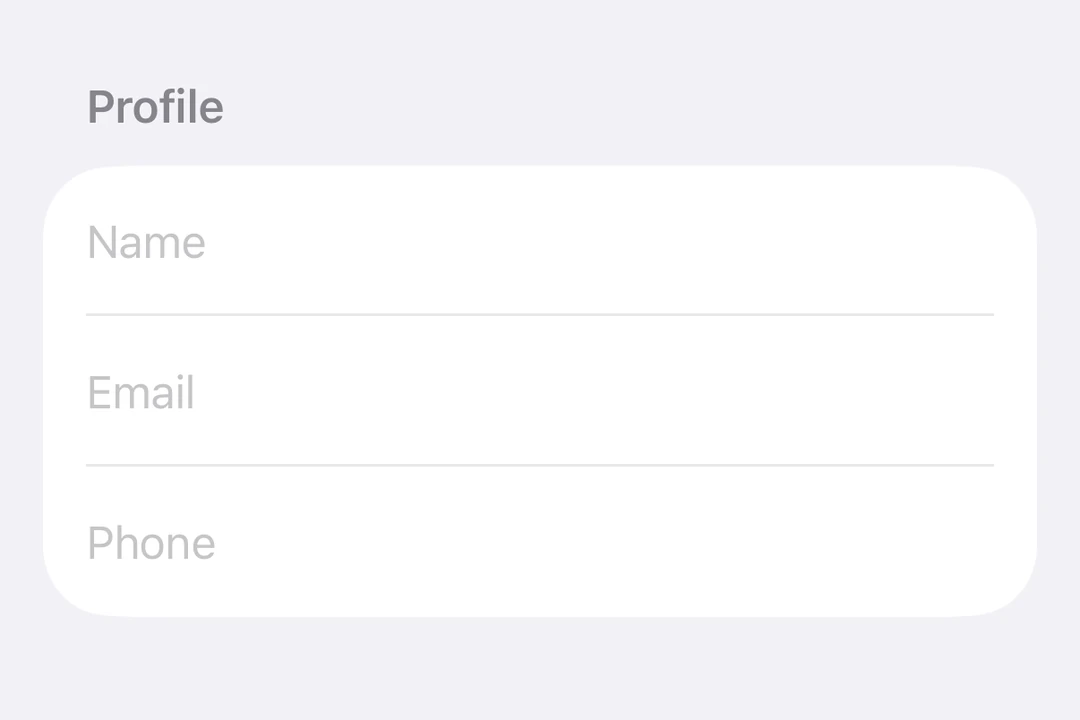
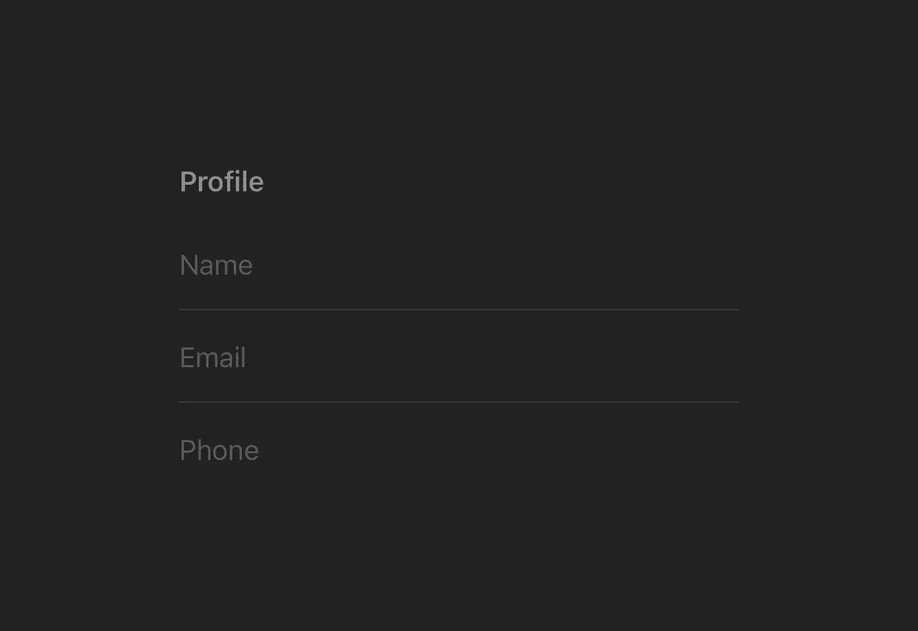
Expo UI TextField matches the official SwiftUI TextField API and supports single-line and multiline input, keyboard configuration, submit handling, and an imperative ref for programmatic control.
Installation
If you are installing this in an existing React Native app, make sure to install expo in your project.
Usage
Uncontrolled text field
Bind a useNativeState observable to text. The field tracks the user's input on its own, and you read the current value from textState.value.
Controlled text field
Pass an onTextChange worklet to transform or validate input and write the result back to the useNativeState observable state. The example below uppercases the text as it is typed.
Note: Worklets require installing
react-native-worklets.
Without the
'worklet'directive,onTextChangeruns asynchronously on the JavaScript thread, and a write totext.valuefrom the JavaScript thread reaches the UI thread later. Do not write the reported value back totext, for example from auseEffectthat copies React state into the field. When the user types quickly, that write can arrive after newer keystrokes and remove them. From the JavaScript thread, write totextonly to set a new value, such as from a preset button.
Multiline text field
Set axis="vertical" to allow the text field to expand vertically. Use the lineLimit modifier to control the visible line count. Give the Host an explicit size so the field has a width to expand within.
Keyboard type
Use the keyboardType modifier to display a specific keyboard layout.
Submit handling
Use the submitLabel modifier to customize the return key and onSubmit to handle the submit action.
Imperative ref
Use a ref to imperatively set text, focus, blur, or select text.
Note:
setSelectionrequires iOS 18.0+ / tvOS 18.0+. The other ref methods work on all supported versions.
Worklet text masking
When onTextChange is marked with the 'worklet' directive, it runs synchronously on the UI thread, so writes to useNativeState observables inside the callback take effect before the next frame. There is no flicker between the typed text and the masked text. The example below masks a phone number as the user types and writes both text and selection from the worklet to keep the cursor at the end of the formatted value.
Note: Worklets require installing
react-native-worklets. Theselectionprop requires iOS 18.0+ / tvOS 18.0+. On older versions the worklet can still update the text but cursor positioning is unavailable.
API
import { TextField } from '@expo/ui/swift-ui';
Component
Type: React.Element<TextFieldProps>
Renders a SwiftUI TextField.
boolean • Default: falseIf true, the text field will be focused automatically when mounted.
string • Default: 'horizontal'The axis along which the text field grows when content exceeds a single line.
'horizontal'— single line (default).'vertical'— expands vertically for multiline content. UselineLimitmodifier to cap visible lines.
Acceptable values are: 'horizontal' | 'vertical'
ReactNodeSlot children — supports <TextField.Placeholder> with a <Text> child
(any text-styling modifiers on that Text are preserved as the
placeholder's styling).
numberMaximum number of characters allowed. Truncates natively as the user types.
(focused: boolean) => voidA callback triggered when the field gains or loses focus.
(selection: {
  end: number,
  start: number
}) => void
A callback triggered when the text selection range changes.
(text: string) => voidA callback triggered when the text value changes.
If the callback is marked with the 'worklet' directive, it runs synchronously
on the UI thread; otherwise it is delivered asynchronously as a regular JS event.
Ref<TextFieldRef>ObservableState<TextFieldSelection>Observable state the field writes the current selection to.
Create with useNativeState<TextFieldSelection>({ start: 0, end: 0 }).
Use ref.setSelection(start, end) to set programmatically.
ObservableState<string>An observable state that holds the current text.
Create one with useNativeState('') or useNativeState('initial value').
If omitted, the field manages its own internal state.
Types
Observable state shared between JavaScript and native views (Jetpack Compose on Android and SwiftUI on iOS).
Type: SharedObject extended by:
Can be used for imperatively focusing and setting text/selection on the TextField component.