This documentation is available as Markdown for AI agents and LLMs. See the full Markdown index or append .md to any documentation URL.
This is documentation for the next SDK version. For up-to-date documentation, see the latest version (SDK 58).
Expo Widgets
A library to build iOS home screen widgets and Live Activities using Expo UI components.
This library is not available in the Expo Go app — use development builds to try it out.
expo-widgets enables the creation of iOS home screen widgets and Live Activities using Expo UI components, without writing native code. It provides a simple API for creating and updating a widget's timeline, as well as starting and managing Live Activities. You can build the layout using expo/ui components and modifiers.
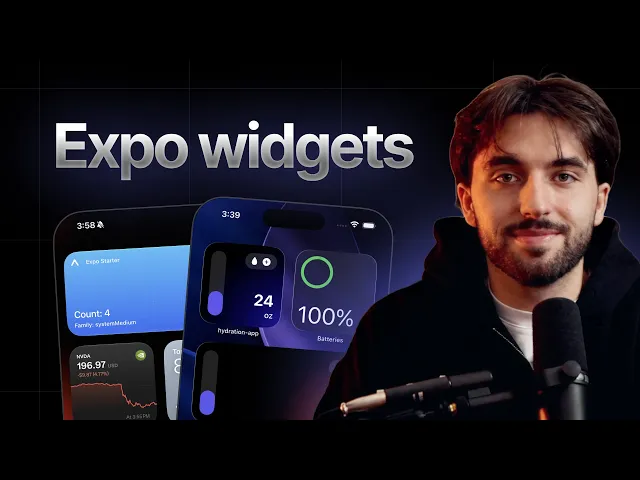
Build a native iOS home screen widget in TypeScript with expo-widgets.
Known limitations
- Widget runtime. Code inside a
'widget'-marked component runs in an isolated runtime and can only use@expo/ui/swift-uicomponents, with no React hooks, app state, or asynchronous work. See The'widget'directive.
Installation
If you are installing this in an existing React Native app, make sure to install expo in your project.
Configuration in app config
You can configure expo-widgets using its built-in config plugin if you use config plugins in your project (Continuous Native Generation (CNG)). The plugin allows you to configure various properties that cannot be set at runtime and require building a new app binary to take effect.
Example app.json with config plugin
Configurable properties
The top-level
supportedFamiliesandcontentMarginsDisabledoptions are deprecated aliases forios.supportedFamiliesandios.contentMarginsDisabled. Prefer the nestediosform shown above.
Full example with all options
Usage
The 'widget' directive
Components passed to createWidget and createLiveActivity must start with the 'widget' directive. The directive tells the bundler to compile that component into a separate JavaScript bundle that runs in an isolated runtime inside the widget extension, not in your app's React Native runtime.
Because of this isolation, code inside a 'widget'-marked component is limited:
- It can only render
@expo/ui/swift-uicomponents and modifiers. Standard React Native components (such asViewandTextfromreact-native) are not available. - It cannot use React hooks (
useState,useEffect, and others), component state, or context. The function must be pure and return its layout synchronously. - It cannot perform asynchronous work, import other modules, or access your app's runtime or in-memory state.
- It cannot reference anything declared outside the component function, including plain top-level
consts in the same file. The bundler serializes only the function body, so module-scope values are not present at runtime. Declare every constant and helper inside the widget function, or pass it in through props.
All data a widget needs must come in through its props (set with updateSnapshot, updateTimeline, or a Live Activity's start and update) and the environment argument. To use images, write them to widgetsDirectory from your app and reference them by path.
import { Text } from '@expo/ui/swift-ui';
import { createWidget, type WidgetEnvironment } from 'expo-widgets';

// Declared at module scope — not included in the widget bundle.
const CITY_NAMES: Record<string, string> = { sf: 'San Francisco' };

const CityWidget = (props: object, environment: WidgetEnvironment<{ city: string }>) => {
  'widget';
  // Throws at runtime: Can't find variable: CITY_NAMES
  return <Text>{CITY_NAMES[environment.configuration.city]}</Text>;
};

export default createWidget('CityWidget', CityWidget);
Move CITY_NAMES inside CityWidget (or pass the resolved value through props) to fix it.
Widgets
Prerequisite: Creating a widget
Start by creating a widget using the createWidget function and pass the widget component marked with the 'widget' directive. The component receives your widget props as the first argument and a WidgetEnvironment object as the second.
import { Text, VStack } from '@expo/ui/swift-ui';
import { font, foregroundStyle } from '@expo/ui/swift-ui/modifiers';
import { createWidget, type WidgetEnvironment } from 'expo-widgets';

type MyWidgetProps = {
  count: number;
};

const MyWidget = (props: MyWidgetProps, environment: WidgetEnvironment) => {
  'widget';
  return (
    <VStack>
      <Text modifiers={[font({ weight: 'bold', size: 16 }), foregroundStyle('#000000')]}>
        Count: {props.count}
      </Text>
      <Text>Family: {environment.widgetFamily}</Text>
    </VStack>
  );
};

export default createWidget('MyWidget', MyWidget, { count: 0 });
The widget name ('MyWidget') must match the name field in your widget configuration in the app config.
The optional third argument provides the initial props used before the widget timeline is updated.
Basic widget
An effective way to update a widget is to use the updateSnapshot method. This creates a widget timeline with a single entry that displays immediately.
The example below continues from Creating a widget.
import MyWidget from './MyWidget';

// Update the widget
MyWidget.updateSnapshot({ count: 5 });
Timeline widget
Use the updateTimeline method to schedule widget updates at a specific time. The system automatically updates the widget based on the timeline.
The example below continues from Creating a widget.
import MyWidget from './MyWidget';

MyWidget.updateTimeline([
  { date: new Date(), props: { count: 1 } },
  { date: new Date(Date.now() + 3600000), props: { count: 2 } }, // 1 hour from now
  { date: new Date(Date.now() + 7200000), props: { count: 3 } }, // 2 hours from now
  { date: new Date(Date.now() + 10800000), props: { count: 4 } }, // 3 hours from now
]);
Reading the current timeline
Use getTimeline to read the entries currently scheduled for a widget, including past and future entries.
import MyWidget from './MyWidget';

const entries = await MyWidget.getTimeline();
// [{ date: Date, props: { count: number } }, ...]
Reloading a widget
Use reload to force the system to refresh a widget's content and timeline immediately, for example after the underlying data changes.
import MyWidget from './MyWidget';

MyWidget.reload();
Responsive widget
Use the environment argument to adapt the layout to the current widget size and rendering context.
import { HStack, Text, VStack } from '@expo/ui/swift-ui';
import { createWidget, type WidgetEnvironment } from 'expo-widgets';

type WeatherWidgetProps = {
  temperature: number;
  condition: string;
};

const WeatherWidget = (props: WeatherWidgetProps, environment: WidgetEnvironment) => {
  'widget';
  // Render different layouts based on size
  if (environment.widgetFamily === 'systemSmall') {
    return (
      <VStack>
        <Text>{props.temperature}°</Text>
      </VStack>
    );
  }

  if (environment.widgetFamily === 'systemMedium') {
    return (
      <HStack>
        <Text>{props.temperature}°</Text>
        <Text>{props.condition}</Text>
      </HStack>
    );
  }

  // systemLarge and others
  return (
    <VStack>
      <Text>Temperature: {props.temperature}°</Text>
      <Text>Condition: {props.condition}</Text>
      <Text>Updated: {environment.date.toLocaleTimeString()}</Text>
    </VStack>
  );
};

const Widget = createWidget('WeatherWidget', WeatherWidget);
export default Widget;

Widget.updateSnapshot({
  temperature: 72,
  condition: 'Sunny',
});
Adapting to the rendering environment
Beyond widgetFamily and date, the environment object describes how and where the system is drawing the widget so you can adapt the layout:
colorScheme:'light'or'dark'.widgetRenderingMode:'fullColor'for home screen widgets,'vibrant'for Lock Screen widgets (the system desaturates them into an adaptive monochrome look), and'accented'for tinted widgets on iOS 18 and later. Use this to choose colors that read well in each mode.isLuminanceReduced:truewhen the display requires reduced brightness (such as Always-On). Lower the overall brightness of your content, for example by using stroked rather than filled shapes.widgetContentMargins: The system-suggested margins (top,bottom,leading,trailing) when content margins are not disabled.showsWidgetLabel: For accessory widgets, whether an accessory label can be displayed.
Interactive widgets
Widgets can include interactive controls such as Button. The value a button's onPress callback returns becomes the widget's new props. The runtime persists it and reloads the widget on device, with no running app process required. This is the primary way to make a widget update itself in response to a tap. Interactive widgets require iOS 17 or later.
To also keep your running app in sync with widget interactions, give the control a target identifier (as above) and listen for taps with addUserInteractionListener. The listener receives the widget's name as source and the control's target. Unlike onPress, it only fires while the app process is alive, so use it to mirror interactions into app state, not as the widget's update mechanism.
Sharing images with widgetsDirectory
A widget can't access files inside your app's sandbox, so to display an image in a widget you must place it in the shared app group container. widgetsDirectory is a file:// URL string pointing to a directory that both your app and its widgets can read. Write the image there from your app, then reference it by path in the widget.
import { widgetsDirectory } from 'expo-widgets';

// `widgetsDirectory` is a file:// URL to a directory shared with your widgets.
console.log(widgetsDirectory);
widgetsDirectoryisnullonly when no app group is configured. ThegroupIdentifierconfig plugin option sets one up automatically (falling back togroup.<bundle identifier>), so it is available in normal use.
Configurable widgets
When you add an ios.configuration to a widget, users can long-press the widget and edit its parameters. The values they choose are delivered to your widget through environment.configuration. Type the configuration by passing a second type argument to createWidget (and WidgetEnvironment). Configurable widgets require iOS 17 or later.
import { Text, VStack } from '@expo/ui/swift-ui';
import { createWidget, type WidgetEnvironment } from 'expo-widgets';

type WeatherProps = {
  temperature: number;
};

type WeatherConfiguration = {
  city: string;
};

const WeatherWidget = (
  props: WeatherProps,
  environment: WidgetEnvironment<WeatherConfiguration>
) => {
  'widget';
  return (
    <VStack>
      <Text>{environment.configuration.city}</Text>
      <Text>{props.temperature}°</Text>
    </VStack>
  );
};

export default createWidget<WeatherProps, WeatherConfiguration>('WeatherWidget', WeatherWidget);
Dynamic enum options
Set dynamic: true on an enum parameter in the app config when the list of choices is only known at runtime, such as workspaces loaded after sign-in. The values array in app config is used as the fallback list until the app provides runtime options as shown below:
WeatherWidget.setConfigurationParameterEnum('city', [
  { name: 'Current City', value: 'current' },
  { name: 'San Francisco', value: 'sf' },
  { name: 'New York', value: 'nyc' },
]);
Live Activities
Live Activities display real-time information on the Lock Screen and in the Dynamic Island on supported devices.
Prerequisite: Creating a Live Activity
Live Activity layouts must be created once using createLiveActivity and marked with the 'widget' directive. The component receives your props as the first argument and a LiveActivityEnvironment object as the second. It returns an object describing the layout for each presentation: the Lock Screen banner, the compact and minimal Dynamic Island states, and the expanded Dynamic Island regions.
createLiveActivityregisters a Live Activity entirely at runtime, and the library's built-in Live Activity target renders it. Do not add awidgets[]entry for it in the app config. Thewidgets[]array is only for home screen and Lock Screen widgets, and an entry withoutsupportedFamiliesgenerates an invalid widget target that fails to build. Thenameyou pass tocreateLiveActivityonly has to match thiscreateLiveActivitycall, not an app-config widget.
import { Image, Text, VStack } from '@expo/ui/swift-ui';
import { font, foregroundStyle, padding } from '@expo/ui/swift-ui/modifiers';
import { createLiveActivity, type LiveActivityEnvironment } from 'expo-widgets';

type DeliveryActivityProps = {
  etaMinutes: number;
  status: string;
};

const DeliveryActivity = (props: DeliveryActivityProps, environment: LiveActivityEnvironment) => {
  'widget';
  const accentColor = environment.isLuminanceReduced ? '#FFFFFF' : '#007AFF';

  return {
    banner: (
      <VStack modifiers={[padding({ all: 12 })]}>
        <Text modifiers={[font({ weight: 'bold' }), foregroundStyle(accentColor)]}>
          {props.status}
        </Text>
        <Text>Estimated arrival: {props.etaMinutes} minutes</Text>
      </VStack>
    ),
    compactLeading: <Image systemName="box.truck.fill" color={accentColor} />,
    compactTrailing: <Text>{props.etaMinutes} min</Text>,
    minimal: <Image systemName="box.truck.fill" color={accentColor} />,
    expandedLeading: (
      <VStack modifiers={[padding({ all: 12 })]}>
        <Image systemName="box.truck.fill" color={accentColor} />
        <Text modifiers={[font({ size: 12 })]}>Delivering</Text>
      </VStack>
    ),
    expandedTrailing: (
      <VStack modifiers={[padding({ all: 12 })]}>
        <Text modifiers={[font({ weight: 'bold', size: 20 })]}>{props.etaMinutes}</Text>
        <Text modifiers={[font({ size: 12 })]}>minutes</Text>
      </VStack>
    ),
    expandedBottom: (
      <VStack modifiers={[padding({ all: 12 })]}>
        <Text>Driver: John Smith</Text>
        <Text>Order #12345</Text>
      </VStack>
    ),
  };
};

export default createLiveActivity('DeliveryActivity', DeliveryActivity);
The layout object supports these regions:
banner: The main Lock Screen presentation.bannerSmall: A compact Lock Screen presentation used on CarPlay and watchOS. Falls back tobannerwhen omitted.compactLeading,compactTrailing,minimal: The compact and minimal Dynamic Island states.expandedLeading,expandedTrailing,expandedCenter,expandedBottom: The regions of the expanded Dynamic Island.
The environment object also exposes isLuminanceReduced, isActivityFullscreen, isActivityUpdateReduced, and activityFamily so you can adapt the layout to the current presentation.
Starting a Live Activity
The example below continues from Creating a Live Activity.
import { Button, View } from 'react-native';
import DeliveryActivity from './DeliveryActivity';

function App() {
  const startDeliveryTracking = () => {
    // Start the Live Activity
    const instance = DeliveryActivity.start(
      {
        etaMinutes: 15,
        status: 'Your delivery is on the way',
      },
      'myapp://deliveries/12345'
    );
    // Store instance
  };

  return (
    <View style={{ flex: 1, justifyContent: 'center', alignItems: 'center' }}>
      <Button title="Start delivery tracking" onPress={startDeliveryTracking} />
    </View>
  );
}
export default App;
The optional second argument is a URL associated with the Live Activity. When the user taps the activity, the system opens your app with that URL, so you can route to the relevant screen using linking (for example with Expo Router's deep linking).
Updating a Live Activity
The example below continues from Starting a Live Activity.
import { LiveActivity } from 'expo-widgets';

function updateDelivery(instance: LiveActivity<DeliveryActivityProps>) {
  instance.update({
    etaMinutes: 2,
    status: 'Delivery arriving soon!',
  });
}
Recovering active Live Activities
A Live Activity can outlive the app process that started it. Use getInstances on the factory to retrieve the activities of that type that are currently active, for example to update or end them after your app relaunches.
import DeliveryActivity from './DeliveryActivity';

const activeInstances = DeliveryActivity.getInstances();

for (const instance of activeInstances) {
  await instance.update({ etaMinutes: 5, status: 'Almost there' });
}
Ending a Live Activity
Use end to finish a Live Activity. You can choose the dismissal policy, optionally provide a final content state, and pass a contentDate so the system can ignore stale updates.
import { after, type LiveActivity } from 'expo-widgets';

async function completeDelivery(instance: LiveActivity<DeliveryActivityProps>) {
  await instance.end(
    after(new Date(Date.now() + 15 * 60 * 1000)),
    {
      etaMinutes: 0,
      status: 'Delivered',
    },
    new Date()
  );
}
You can also pass 'default' or 'immediate' instead of after(date) for the dismissal policy.
Remote updates with push notifications
When enablePushNotifications is true, you can update Live Activities remotely from your server through Apple Push Notification service (APNs).
- Use
addPushToStartTokenListenerto receive the app-wide push-to-start token, which lets your server start a Live Activity remotely (requires iOS 17.2 or later). - Use
instance.getPushToken()orinstance.addPushTokenListener()to obtain the token for a specific running Live Activity, which lets your server send updates to that activity.
import { addPushToStartTokenListener } from 'expo-widgets';
import DeliveryActivity from './DeliveryActivity';

const pushToStartSubscription = addPushToStartTokenListener(event => {
  console.log('Push-to-start token:', event.activityPushToStartToken);
});

async function startDeliveryTracking() {
  const instance = DeliveryActivity.start({
    etaMinutes: 15,
    status: 'Your delivery is on the way',
  });

  const pushToken = await instance.getPushToken();
  console.log('Per-activity token:', pushToken);

  const subscription = instance.addPushTokenListener(event => {
    console.log('Updated push token:', event.activityId, event.pushToken);
  });

  // Later, when you no longer need updates:
  subscription.remove();
}

// Later, when you no longer need updates:
pushToStartSubscription.remove();
Send the token to your server and use it to push updates. The notification must use the liveactivity push type (the apns-push-type header) and an apns-topic of <your bundle identifier>.push-type.liveactivity. Its aps payload carries an event (start, update, or end), a timestamp, and a content-state that matches your activity's props. The content-state must match the internal content state used by expo-widgets: set name to the name you passed to createLiveActivity, and set props to a JSON string of that activity's props. Use apns-priority: 10 for immediate updates and apns-priority: 5 for lower-priority updates. The timestamp, dismissal-date, and other APNs date fields are Unix timestamps in seconds.
To start a Live Activity remotely, send a start event to the push-to-start token:
{
  "aps": {
    "timestamp": 1778832000,
    "event": "start",
    "attributes-type": "LiveActivityAttributes",
    "attributes": {},
    "content-state": {
      "name": "DeliveryActivity",
      "props": "{\"etaMinutes\":15,\"status\":\"Your delivery is on the way\"}"
    },
    "alert": {
      "title": "Delivery started",
      "body": "Your delivery is on the way"
    }
  }
}
Remote start requires iOS 17.2 or later. Include input-push-token: 1 in the aps payload on iOS 18 or later if you want APNs to provide a new per-activity token for future updates.
To update a Live Activity remotely, send an update event to that activity's per-activity token:
{
  "aps": {
    "timestamp": 1778832300,
    "event": "update",
    "content-state": {
      "name": "DeliveryActivity",
      "props": "{\"etaMinutes\":2,\"status\":\"Delivery arriving soon!\"}"
    }
  }
}
To end a Live Activity remotely, send an end event with the final content state:
{
  "aps": {
    "timestamp": 1778832600,
    "event": "end",
    "content-state": {
      "name": "DeliveryActivity",
      "props": "{\"etaMinutes\":0,\"status\":\"Delivered\"}"
    },
    "dismissal-date": 1778833200
  }
}
For the exact payload shape and headers, follow Apple's Starting and updating Live Activities with ActivityKit push notifications.
API
import { createWidget, createLiveActivity } from 'expo-widgets';
Constants
Type: string
A directory that can be used to store shared images for widgets. The contents of this directory are accessible by both the main app and widgets.
Classes
A posted custom notification. It wraps a native object that knows the notification key, so an
instance recovered with CustomNotificationFactory.get() or getActive() after a process restart
behaves like the one returned by post().
CustomNotification Properties
CustomNotification Methods
Removes the notification from the shade immediately. Cancels any pending post or update for this notification.
Promise<void>Reads the props currently shown by the notification from the active notification, so they include changes made by button presses inside the notification.
Rejects when the notification is no longer active, for example after dismissal or cancellation.
Promise<T>A promise that resolves to the current props.
Renders the layout with new props and replaces the notification in place. The notification
does not alert again when alertOnlyOnce is true.
Rejects when the notification is no longer active, for example after the user dismissed it or
after cancel(). Post it again in that case. Also rejects when the notification is canceled
while the update renders, or for the same reasons as post(), such as an invalid color.
Promise<void>Posts and manages custom notifications that share one layout.
CustomNotificationFactory Properties
CustomNotificationFactory Methods
Removes every active notification posted with this layout and cancels pending posts and updates.
Promise<void>Returns the active notification with the given key.
Promise<CustomNotification<T> | null>A promise that resolves to the notification, or to null when no such notification is active.
Returns every active notification posted with this layout, including notifications posted before a process restart.
Promise<CustomNotification[]>Renders the layout and posts the notification. Posting with the id of an active notification
replaces that notification in place.
Rejects in these cases:
- Notifications are disabled for the app.
channelIdnames a channel that does not exist.smallIconnames a drawable that does not exist.coloris not in#RRGGBBor#AARRGGBBformat.- The layout returns no
collapsedsection. - The post is canceled before rendering finishes.
Promise<CustomNotification<T>>A promise that resolves to a handle for the posted notification.
Represents a Live Activity instance. Provides methods to update its content and end it.
LiveActivity Methods
Adds a listener for push token update events on this Live Activity instance. The token can be used to send content updates to this specific activity via APNs.
EventSubscriptionAn event subscription that can be used to remove the listener.
Returns the push token for this Live Activity, used to send push notification updates via APNs.
Returns null if push notifications are not enabled or the token is not yet available.
Promise<string | null>Updates the Live Activity's content. The UI reflects the new properties immediately.
Promise<void>Manages Live Activity instances of a specific type. Use it to start new activities and retrieve currently active ones.
LiveActivityFactory Methods
Returns all currently active instances of this Live Activity type.
LiveActivity[]Starts a new Live Activity with the given properties.
LiveActivity<T>The new Live Activity instance.
Represents a widget instance. Provides methods to manage the widget's timeline.
Widget Methods
Returns the current timeline entries for the widget, including past and future entries.
Promise<WidgetTimelineEntry[]>Force reloads the widget, causing it to refresh its content and timeline.
voidReplaces the runtime options for a dynamic enum configuration parameter. The app config values remain the fallback when no runtime options are set.
voidSets the widget's content to the given props immediately, without scheduling a timeline.
voidMethods
Creates a factory that posts notifications rendered from the given layout.
The factory can be created on every platform. Its methods reject with UnavailabilityError on
platforms other than Android.
CustomNotificationFactory<T>Example
import { Row, Text } from '@expo/ui/jetpack-compose';
import { createCustomNotification } from 'expo-widgets';

type Props = { status: string };

const OrderNotification = createCustomNotification('OrderNotification', (props: Props) => {
  'widget';
  return {
    collapsed: (
      <Row>
        <Text>{props.status}</Text>
      </Row>
    ),
  };
});

const order = await OrderNotification.post({ status: 'Preparing' }, { id: 'order-1', ongoing: true });
await order.update({ status: 'Delivered' }, { ongoing: false, timeoutAfter: 15 * 60 * 1000 });
Creates a Live Activity Factory for managing Live Activities of a specific type.
LiveActivityFactory<T>Event subscriptions
Adds a listener for push-to-start token events. This token can be used to start live activities remotely via APNs.
EventSubscriptionAn event subscription that can be used to remove the listener.
Adds a listener for widget interaction events (for example, button taps).
EventSubscriptionAn event subscription that can be used to remove the listener.
Types
A function that returns the views of a custom notification. It must start with the 'widget'
directive and use @expo/ui/jetpack-compose components.
The views of a custom notification. Each section is rendered into its own RemoteViews at a
fixed size, so a section cannot depend on the size of another section.
Type: Omit<CustomNotificationOptions, 'id'>
Presentation options that an update can override. Options that an update omits keep the value from the previous post or update.
Literal type: string
The level of detail the view is recommended to have. The system can update the levelOfDetail value based on user proximity or other system specific factors and allow content customization adapting to show different levels of details.
simplified— The system recommends showing a simplified view with less details.default— The system has no specific recommendation for the level of detail.
Acceptable values are: 'simplified' | 'default'
A function that returns the layout for a Live Activity.
Literal type: union
Dismissal policy for ending a live activity.
'default'- The system’s default dismissal policy for the Live Activity.'immediate'- The system immediately removes the Live Activity that ended.after(date)- The system removes the Live Activity that ended at the specified time within a four-hour window.
Acceptable values are: 'default' | 'immediate' | ReturnType<after>
Literal type: string
The widget family (size).
systemSmall- Small square widget (2x2 grid).systemMedium- Medium widget (4x2 grid).systemLarge- Large widget (4x4 grid).systemExtraLarge- Extra large widget (iPad only, 6x4 grid).accessoryCircular- Circular accessory widget for the Lock Screen.accessoryRectangular- Rectangular accessory widget for the Lock Screen.accessoryInline- Inline accessory widget for the Lock Screen.
Acceptable values are: 'systemSmall' | 'systemMedium' | 'systemLarge' | 'systemExtraLarge' | 'accessoryCircular' | 'accessoryRectangular' | 'accessoryInline'
Literal type: string
The rendering mode of the widget as provided by WidgetKit.
fullColor— Home screen widgets (default).accented— Tinted widgets (iOS 18+) and watchOS.vibrant— Lock screen widgets.
Acceptable values are: 'fullColor' | 'accented' | 'vibrant'