This documentation is available as Markdown for AI agents and LLMs. See the full Markdown index or append .md to any documentation URL.
Button
Jetpack Compose Button components for displaying native Material3 buttons.
For cross-platform usage, see the universalButton— it renders the appropriate native component per platform.
Expo UI provides five button components that match the official Jetpack Compose Button API: Button (filled), FilledTonalButton, OutlinedButton, ElevatedButton, and TextButton. All variants share the same props and accept composable children for content.
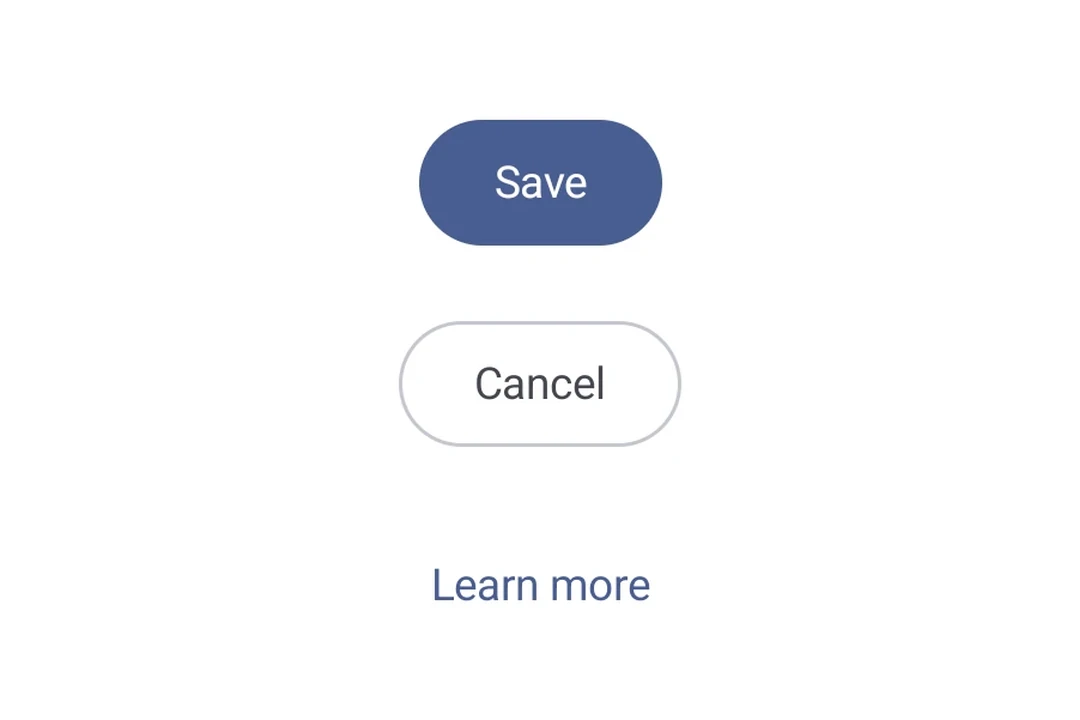
| Type | Appearance | Purpose |
|---|---|---|
| Filled | Solid background with contrasting text. | High-emphasis buttons for primary actions such as "submit" and "save." |
| Filled tonal | Background color varies to match the surface. | Also for primary or significant actions. Filled tonal buttons provide more visual weight and suit functions such as "add to cart" and "Sign in." |
| Elevated | Stands out by having a shadow. | Serves a similar purpose to tonal buttons. Increase elevation to make the button appear even more prominently. |
| Outlined | Features a border with no fill. | Medium-emphasis buttons, containing actions that are important but not primary. They pair well with other buttons to indicate alternative, secondary actions like "Cancel" or "Back." |
| Text | Displays text with no background or border. | Low-emphasis buttons, ideal for less critical actions such as navigational links, or secondary functions like "Learn More" or "View details." |
Installation
- npx expo install @expo/uiIf you are installing this in an existing React Native app, make sure to install expo in your project.
Usage
Basic button
A filled button is the default, high-emphasis button for primary actions.
import { Host, Button, Text } from '@expo/ui/jetpack-compose';

export default function BasicButtonExample() {
  return (
    <Host matchContents>
      <Button onClick={() => alert('Pressed!')}>
        <Text>Press me</Text>
      </Button>
    </Host>
  );
}
Button variants
Use different button components to convey varying levels of emphasis.
import {
  Host,
  Button,
  FilledTonalButton,
  OutlinedButton,
  ElevatedButton,
  TextButton,
  Column,
  Text,
} from '@expo/ui/jetpack-compose';

export default function ButtonVariantsExample() {
  return (
    <Host matchContents>
      <Column verticalArrangement={{ spacedBy: 8 }}>
        <Button onClick={() => {}}>
          <Text>Filled</Text>
        </Button>
        <FilledTonalButton onClick={() => {}}>
          <Text>Filled Tonal</Text>
        </FilledTonalButton>
        <OutlinedButton onClick={() => {}}>
          <Text>Outlined</Text>
        </OutlinedButton>
        <ElevatedButton onClick={() => {}}>
          <Text>Elevated</Text>
        </ElevatedButton>
        <TextButton onClick={() => {}}>
          <Text>Text</Text>
        </TextButton>
      </Column>
    </Host>
  );
}
Button with icons
Since buttons accept composable children, you can add leading and trailing icons using the Icon component. This follows the Material 3 buttons with icon pattern (official sample), use 18dp icon size, 8dp spacing between the icon and label.
import {
  Host,
  Button,
  OutlinedButton,
  FilledTonalButton,
  Icon,
  Spacer,
  Text,
} from '@expo/ui/jetpack-compose';
import { width } from '@expo/ui/jetpack-compose/modifiers';

const addIcon = require('./assets/add.png');
const sendIcon = require('./assets/send.png');

export default function ButtonWithIconsExample() {
  return (
    <Host matchContents>
      {/* Leading icon */}
      <Button onClick={() => {}}>
        <Icon source={addIcon} size={18} tint="#FFFFFF" />
        <Spacer modifiers={[width(8)]} />
        <Text>Add Item</Text>
      </Button>

      {/* Trailing icon */}
      <OutlinedButton onClick={() => {}}>
        <Text>Send</Text>
        <Spacer modifiers={[width(8)]} />
        <Icon source={sendIcon} size={18} />
      </OutlinedButton>

      {/* Both leading and trailing icons */}
      <FilledTonalButton onClick={() => {}}>
        <Icon source={addIcon} size={18} />
        <Spacer modifiers={[width(8)]} />
        <Text>Create & Send</Text>
        <Spacer modifiers={[width(8)]} />
        <Icon source={sendIcon} size={18} />
      </FilledTonalButton>
    </Host>
  );
}
Custom colors
Override container and content colors using the colors prop.
import { Host, Button, Text } from '@expo/ui/jetpack-compose';

export default function CustomColorsExample() {
  return (
    <Host matchContents>
      <Button onClick={() => {}} colors={{ containerColor: '#6200EE', contentColor: '#FFFFFF' }}>
        <Text>Purple Button</Text>
      </Button>
    </Host>
  );
}
Custom shape
import { Host, Button, Shape, Text } from '@expo/ui/jetpack-compose';

export default function CustomShapeExample() {
  return (
    <Host matchContents>
      <Button
        onClick={() => {}}
        shape={Shape.RoundedCorner({ cornerRadii: { topStart: 16, bottomEnd: 16 } })}>
        <Text>Custom Shape</Text>
      </Button>
    </Host>
  );
}
API
import {
  Button,
  FilledTonalButton,
  OutlinedButton,
  ElevatedButton,
  TextButton,
} from '@expo/ui/jetpack-compose';
Components
Type: React.Element<ButtonProps>
A filled button component.
ButtonContentPaddingThe padding between the button container and its content. Use this to adjust internal spacing, for example when adding a leading icon
boolean • Default: trueWhether the button is enabled for user interaction.
Types
Colors for button elements.
| Property | Type | Description |
|---|---|---|
| containerColor(optional) | ColorValue | - |
| contentColor(optional) | ColorValue | - |
| disabledContainerColor(optional) | ColorValue | - |
| disabledContentColor(optional) | ColorValue | - |