This documentation is available as Markdown for AI agents and LLMs. See the full Markdown index or append .md to any documentation URL.
Introduction to EAS Observe
Edit page
EAS Observe is a performance monitoring service that tracks how your app performs in production across real devices and conditions.
EAS Observe includes 100,000 events per month on the Free plan and 500,000 on paid plans, roughly 10,000 and 50,000 monthly active users. Beyond that, pricing is usage-based. See Pricing for details.
EAS Observe is a performance monitoring service from Expo for tracking how your app performs in production. It gives you visibility into real-world startup times, rendering performance, and user experience across different devices, networks, and conditions.
Debugging performance in React Native has traditionally been limited to development tools. EAS Observe focuses on production, where performance characteristics differ significantly from what you see during development.
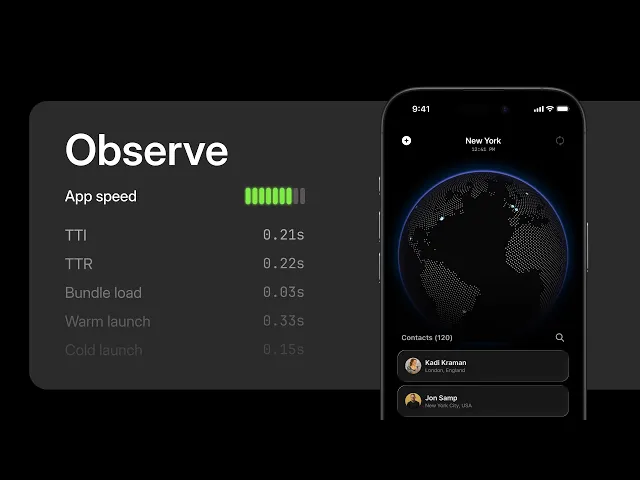
See how EAS Observe surfaces real-world startup and rendering performance from your production app across different devices, networks, and conditions.
Quick start
Wrap your root layout with the ObserveRoot component (or the AppMetricsRoot component on SDK 55) and call markInteractive() when your app is ready for user input. See Get started for the full setup guide.
Expo Skills for AI agents
If you use an AI agent, install Expo Skills to teach it how to set up expo-observe and query your app's performance metrics:
Set up expo-observe, query metrics with the EAS CLI, and interpret startup and navigation performance data.
Why EAS Observe
Traditional development-time profiling tools show how your app performs on your machine. EAS Observe shows how it performs for real users:
- Production performance data: Track startup times, render performance, bundle load times, and EAS Update download times from real user sessions across a range of devices
- Release comparison: See how metrics change between app versions and OTA updates to catch regressions early
- Per-route navigation metrics: Compare render and interactive timings by route with the Expo Router or React Navigation integration
- Session investigation: Drill into individual user sessions to understand why certain devices or conditions lead to slower performance
- User-defined events: Log custom signals from your app with
Observe.logEventand analyze them alongside performance data - Error reporting (in preview): Record JavaScript errors and native crashes and investigate their stack traces in the dashboard
- CLI and dashboard access: Query metrics from the terminal with
eas observe:commands or view them in the EAS dashboard
When to use EAS Observe
Development-time profiling and debugging: Use React Native DevTools for debugging and Expo Atlas for bundle inspection.
JavaScript errors: On SDK 57 and later, EAS Observe records JavaScript errors and shows them in the dashboard with symbolicated stack traces. This feature is in preview. See Error reporting for setup and current limitations.
Native crashes: On SDK 57 with expo-observe 57.0.21 and later, EAS Observe records native crashes on Android and iOS and shows them in the dashboard alongside JavaScript errors. Native stack traces are not symbolicated in the dashboard. See Error reporting for details.
Frequently asked questions (FAQ)
What metrics does EAS Observe track?
EAS Observe tracks startup metrics (cold launch time, warm launch time, time to first render, time to interactive, and bundle load time) and EAS Update download time. On SDK 56 and later, the navigation integrations add per-route render and interactive timings. See the Metrics reference for detailed descriptions of each metric. You can also log your own signals as user-defined events and record JavaScript errors and native crashes (in preview).
Which platforms are supported?
EAS Observe supports Android, iOS, and tvOS. Metrics are collected from production builds and can be filtered by platform in both the dashboard and CLI.
Is EAS Observe available in Expo Go?
No. EAS Observe relies on the expo-observe native library, which is not included in Expo Go. To use it, create a development build or a production build.
Does EAS Observe collect personally identifiable information?
No. Users are identified by an anonymous ID that is unique per app installation. This ID is not personally identifiable and is reset if the user uninstalls and reinstalls the app. See Metrics reference: User for more details.
What happens when the device is offline?
Metrics collected while offline are stored locally on the device. They are automatically dispatched when the app moves to the background and connectivity is available. You can also flush events manually using dispatchEvents().
Can I test metrics during development?
By default, metrics collected from debug builds are not dispatched. You can dispatch them anyway for testing by setting dispatchInDebug to true via configure(). See Configuration for details.
Get started
Install the library and start collecting metrics from your production app.
View metrics, filter by platform or version, and investigate individual sessions.
Log named events from your app and view them in the dashboard or query them from the CLI.
Record JavaScript errors and investigate symbolicated stack traces in the dashboard.
Control environments, dispatching, and development mode settings.
Detailed descriptions of each metric, concepts, and data handling.
Full reference for the expo-observe library API.