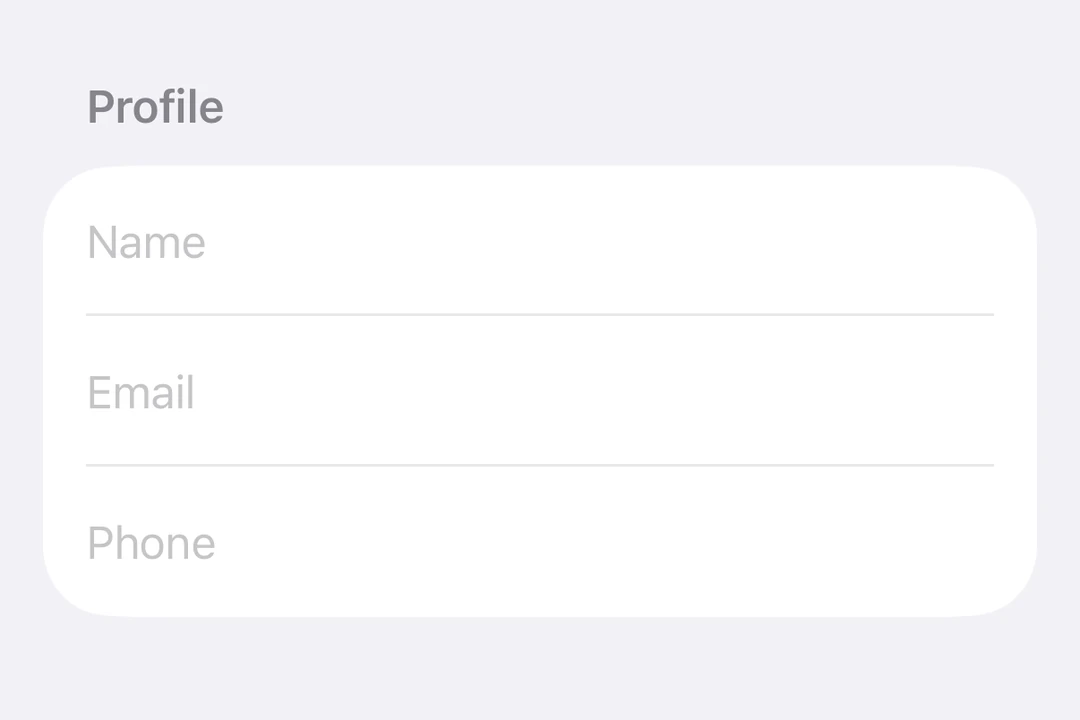
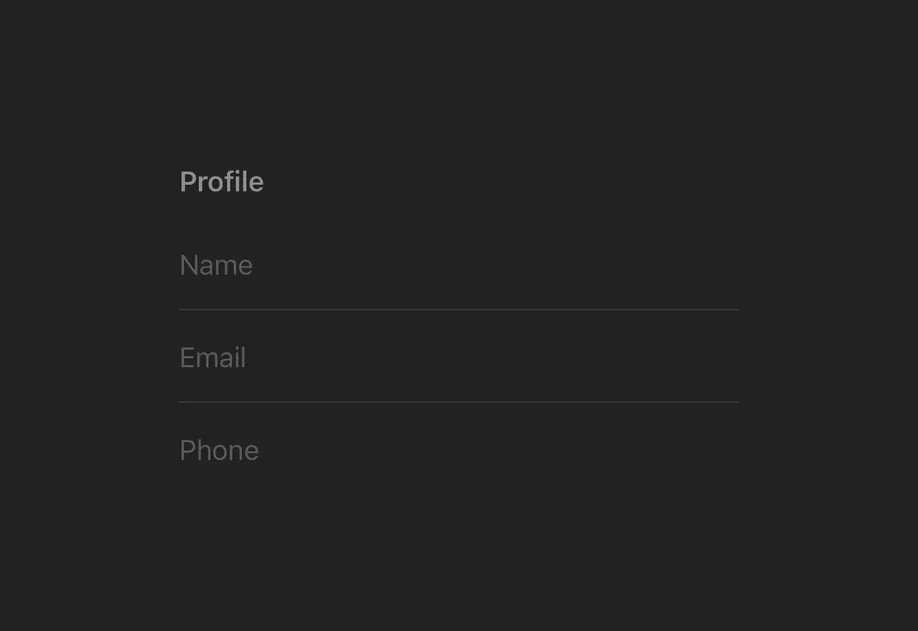
For cross-platform usage, see the universal TextInput — it renders the appropriate native component per platform.
Expo UI TextField matches the official SwiftUI TextField API and supports single-line and multiline input, keyboard configuration, submit handling, and an imperative ref for programmatic control.
Pass an onTextChange worklet to transform or validate input and write the result back to the useNativeState observable state. The example below uppercases the text as it is typed.
Set axis="vertical" to allow the text field to expand vertically. Use the lineLimit modifier to control the visible line count. When using Host matchContents, add fixedSize({ horizontal: false, vertical: true }) so the text field accepts the parent's width while using its ideal height.
MultilineTextFieldExample.tsx
import{Host,TextField, useNativeState }from'@expo/ui/swift-ui';import{ lineLimit, fixedSize }from'@expo/ui/swift-ui/modifiers';exportdefaultfunctionMultilineTextFieldExample(){const textState =useNativeState('');return(<HostmatchContents><TextFieldaxis="vertical"text={textState}placeholder="Tell us about yourself..."modifiers={[lineLimit(5),fixedSize({ horizontal:false, vertical:true})]}/></Host>);}
Keyboard type
Use the keyboardType modifier to display a specific keyboard layout.
When onTextChange is marked with the 'worklet' directive, it runs synchronously on the UI thread, so writes to useNativeState observables inside the callback take effect before the next frame. There is no flicker between the typed text and the masked text. The example below masks a phone number as the user types and writes both text and selection from the worklet to keep the cursor at the end of the formatted value.
Note: Worklets require installing react-native-worklets. The selection prop requires iOS 18.0+ / tvOS 18.0+. On older versions the worklet can still update the text but cursor positioning is unavailable.
WorkletPhoneMaskExample.tsx
import{Host,TextField, useNativeState }from'@expo/ui/swift-ui';import{ keyboardType }from'@expo/ui/swift-ui/modifiers';import{ useCallback }from'react';exportdefaultfunctionWorkletPhoneMaskExample(){const phone =useNativeState('');const selection =useNativeState({ start:0, end:0});const handleTextChange =useCallback((v:string)=>{'worklet';const digits = v.replace(/\D/g,'').slice(0,10);let formatted = digits;if(digits.length>6){
formatted =`(${digits.slice(0,3)}) ${digits.slice(3,6)}-${digits.slice(6)}`;}elseif(digits.length>3){
formatted =`(${digits.slice(0,3)}) ${digits.slice(3)}`;}if(formatted !== v){
phone.value= formatted;// Snaps to end for demo. Real masks need smarter cursor handling.
selection.value={ start: formatted.length, end: formatted.length};}},[phone, selection]);return(<HostmatchContents><TextFieldtext={phone}selection={selection}placeholder="(555) 123-4567"modifiers={[keyboardType('phone-pad')]}onTextChange={handleTextChange}/></Host>);}
The axis along which the text field grows when content exceeds a single line.
'horizontal' — single line (default).
'vertical' — expands vertically for multiline content. Use lineLimit modifier to cap visible lines.
Acceptable values are: 'horizontal' | 'vertical'
children
iOS
tvOS
Optional • Type: React.ReactNode
Slot children — supports <TextField.Placeholder> with a <Text> child
(any text-styling modifiers on that Text are preserved as the
placeholder's styling).
maxLength
iOS
tvOS
Optional • Type: number
Maximum number of characters allowed. Truncates natively as the user types.
onFocusChange
iOS
tvOS
Optional • Type: (focused: boolean) => void
A callback triggered when the field gains or loses focus.
A callback triggered when the text selection range changes.
onTextChange
iOS
tvOS
Optional • Type: (text: string) => void
A callback triggered when the text value changes.
If the callback is marked with the 'worklet' directive, it runs synchronously
on the UI thread; otherwise it is delivered asynchronously as a regular JS event.
Observable state the field writes the current selection to.
Create with useNativeState<TextFieldSelection>({ start: 0, end: 0 }).
Use ref.setSelection(start, end) to set programmatically.
text
iOS
tvOS
Optional • Type: ObservableState<string>
An observable state that holds the current text.
Create one with useNativeState('') or useNativeState('initial value').
If omitted, the field manages its own internal state.
The current value. Reads are safe from any thread; prefer writing from a worklet
so the update runs on the native UI thread. Updating state from the JS thread
might show a development warning.
TextFieldRef
iOS
tvOS
Can be used for imperatively focusing and setting text/selection on the TextField component.