This documentation is available as Markdown for AI agents and LLMs. See the full Markdown index or append .md to any documentation URL.
TabView
A SwiftUI TabView component for paged or tabbed content.
Expo UI TabView matches the official SwiftUI TabView API and switches between styles via the tabViewStyle modifier.
Note: For routed bottom-tab navigation across full-screen routes, use
expo-router/unstable-native-tabsinstead.
Installation
- npx expo install @expo/uiIf you are installing this in an existing React Native app, make sure to install expo in your project.
Usage
Each page is a <TabView.Tab> child, identified by a value prop. TabView does not impose its own height — give it a frame, or place it inside a parent that does.
Page style (swipeable pager)
Use tabViewStyle({ type: 'page' }) for a horizontal pager with optional dot indicators. Pass defaultSelection to start the pager on a specific page without controlling it from React.
import { Host, Spacer, TabView, Text, VStack } from '@expo/ui/swift-ui';
import {
  background,
  font,
  foregroundStyle,
  frame,
  tabViewStyle,
} from '@expo/ui/swift-ui/modifiers';

const fillFrame = frame({ maxWidth: Infinity, maxHeight: Infinity });
const pageFrame = frame({ minHeight: 320, maxHeight: 320 });

export default function PagerExample() {
  return (
    <Host style={{ flex: 1 }}>
      <TabView defaultSelection="1" modifiers={[pageFrame, tabViewStyle({ type: 'page' })]}>
        <TabView.Tab value="0">
          <Page label="Page 1" color="#6200EE" />
        </TabView.Tab>
        <TabView.Tab value="1">
          <Page label="Page 2" color="#03DAC5" />
        </TabView.Tab>
        <TabView.Tab value="2">
          <Page label="Page 3" color="#FF5722" />
        </TabView.Tab>
      </TabView>
    </Host>
  );
}

function Page({ label, color }: { label: string; color: string }) {
  return (
    <VStack alignment="center" modifiers={[fillFrame, background(color)]}>
      <Spacer />
      <Text modifiers={[font({ size: 28, weight: 'bold' }), foregroundStyle('#FFFFFF')]}>
        {label}
      </Text>
      <Spacer />
    </VStack>
  );
}
Controlled selection
Pass selection and onSelectionChange to drive the active tab from React state. Each <TabView.Tab>'s value is matched against selection. Add the animation modifier to animate transitions when selection changes from JS.
import { useState } from 'react';
import { Button, Host, Spacer, TabView, Text, VStack } from '@expo/ui/swift-ui';
import {
  animation,
  Animation,
  background,
  font,
  foregroundStyle,
  frame,
  tabViewStyle,
} from '@expo/ui/swift-ui/modifiers';

const fillFrame = frame({ maxWidth: Infinity, maxHeight: Infinity });
const pageFrame = frame({ minHeight: 320, maxHeight: 320 });

export default function ControlledTabViewExample() {
  const [selected, setSelected] = useState('0');

  return (
    <Host style={{ flex: 1 }}>
      <VStack>
        <Text>Selected: {selected}</Text>
        <Button label="Go to page 3" onPress={() => setSelected('2')} />
        <TabView
          selection={selected}
          onSelectionChange={setSelected}
          modifiers={[
            pageFrame,
            tabViewStyle({ type: 'page' }),
            animation(Animation.default, Number(selected)),
          ]}>
          <TabView.Tab value="0">
            <Page label="Page 1" color="#6200EE" />
          </TabView.Tab>
          <TabView.Tab value="1">
            <Page label="Page 2" color="#03DAC5" />
          </TabView.Tab>
          <TabView.Tab value="2">
            <Page label="Page 3" color="#FF5722" />
          </TabView.Tab>
        </TabView>
      </VStack>
    </Host>
  );
}

function Page({ label, color }: { label: string; color: string }) {
  return (
    <VStack alignment="center" modifiers={[fillFrame, background(color)]}>
      <Spacer />
      <Text modifiers={[font({ size: 28, weight: 'bold' }), foregroundStyle('#FFFFFF')]}>
        {label}
      </Text>
      <Spacer />
    </VStack>
  );
}
Page indicator dots
Use the indexViewStyle modifier together with tabViewStyle({ type: 'page' }) to control the dot indicators. Set indexDisplayMode to 'always', 'never', or 'automatic', and backgroundDisplayMode to render a translucent pill behind the dots.
import { Host, Spacer, TabView, Text, VStack } from '@expo/ui/swift-ui';
import {
  background,
  font,
  foregroundStyle,
  frame,
  indexViewStyle,
  tabViewStyle,
} from '@expo/ui/swift-ui/modifiers';

const fillFrame = frame({ maxWidth: Infinity, maxHeight: Infinity });
const pageFrame = frame({ minHeight: 320, maxHeight: 320 });

export default function PageIndicatorExample() {
  return (
    <Host style={{ flex: 1 }}>
      <TabView
        modifiers={[
          pageFrame,
          tabViewStyle({ type: 'page', indexDisplayMode: 'always' }),
          indexViewStyle({ backgroundDisplayMode: 'always' }),
        ]}>
        <TabView.Tab value="0">
          <Page label="Page 1" color="#4F8DF6" />
        </TabView.Tab>
        <TabView.Tab value="1">
          <Page label="Page 2" color="#34C759" />
        </TabView.Tab>
        <TabView.Tab value="2">
          <Page label="Page 3" color="#FF9F0A" />
        </TabView.Tab>
      </TabView>
    </Host>
  );
}

function Page({ label, color }: { label: string; color: string }) {
  return (
    <VStack alignment="center" modifiers={[fillFrame, background(color)]}>
      <Spacer />
      <Text modifiers={[font({ size: 28, weight: 'bold' }), foregroundStyle('#FFFFFF')]}>
        {label}
      </Text>
      <Spacer />
    </VStack>
  );
}
Bottom tab bar
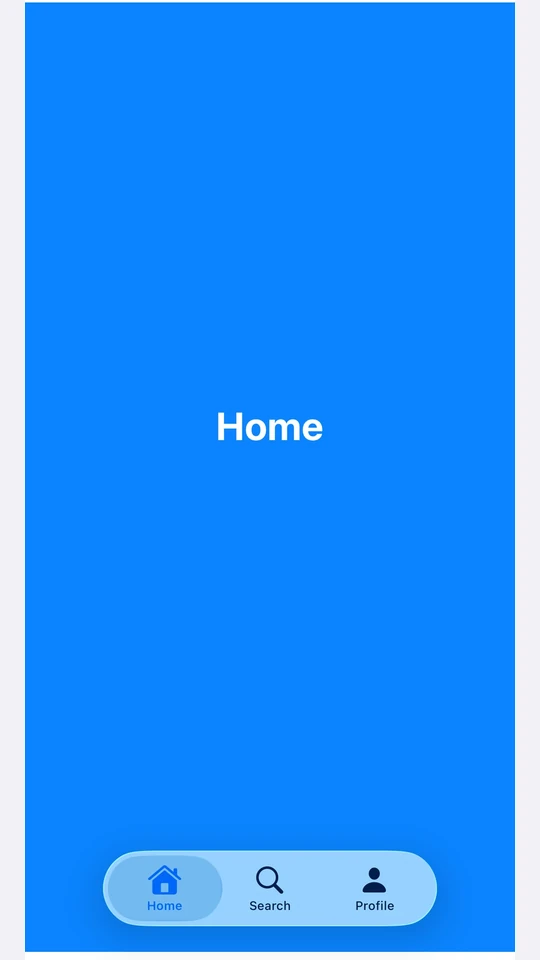
Use tabViewStyle({ type: 'automatic' }) for the SwiftUI default tab bar. Each tab's label and systemImage populate the bar item. Use the badge modifier on a tab to attach a badge to its bar item.
Note: For routed bottom-tab navigation across full-screen routes, use
expo-router/unstable-native-tabsinstead.
import { useState } from 'react';
import { Host, Spacer, TabView, Text, VStack } from '@expo/ui/swift-ui';
import {
  background,
  badge,
  font,
  foregroundStyle,
  frame,
  tabViewStyle,
} from '@expo/ui/swift-ui/modifiers';

const fillFrame = frame({ maxWidth: Infinity, maxHeight: Infinity });

export default function BottomTabsExample() {
  const [selected, setSelected] = useState('inbox');

  return (
    <Host style={{ flex: 1 }}>
      <TabView
        selection={selected}
        onSelectionChange={setSelected}
        modifiers={[tabViewStyle({ type: 'automatic' })]}>
        <TabView.Tab value="inbox" label="Inbox" systemImage="tray.fill" modifiers={[badge('3')]}>
          <Page label="Inbox" color="#4F8DF6" />
        </TabView.Tab>
        <TabView.Tab value="sent" label="Sent" systemImage="paperplane.fill">
          <Page label="Sent" color="#34C759" />
        </TabView.Tab>
        <TabView.Tab value="drafts" label="Drafts" systemImage="square.and.pencil">
          <Page label="Drafts" color="#FF9F0A" />
        </TabView.Tab>
      </TabView>
    </Host>
  );
}

function Page({ label, color }: { label: string; color: string }) {
  return (
    <VStack alignment="center" modifiers={[fillFrame, background(color)]}>
      <Spacer />
      <Text modifiers={[font({ size: 28, weight: 'bold' }), foregroundStyle('#FFFFFF')]}>
        {label}
      </Text>
      <Spacer />
    </VStack>
  );
}
API
import { TabView } from '@expo/ui/swift-ui';
Component
Type: React.Element<TabViewProps>
A SwiftUI TabView. Pair with modifiers to choose the appearance:
tabViewStyle({ type: 'page' })— swipeable pager.tabViewStyle({ type: 'automatic' })— bottom tab bar.tabViewStyle({ type: 'sidebarAdaptable' })— sidebar on iPad, tab bar on iPhone.
Use <TabView.Tab> children to define pages. Each tab is identified by its
value prop, which is used for selection.
For routed bottom-tab navigation across full-screen routes, prefer
expo-router/unstable-native-tabs.
stringIdentifies this tab. Matched against the parent TabView's selection
and defaultSelection props.
union<TabView.Tab> elements defining the pages.
Acceptable values are: React.ReactElement | React.ReactElement
stringThe initially selected tab when the component is uncontrolled
(no selection prop). Ignored if selection is provided.
(selection: string) => voidCalled when the selected tab changes.
stringThe selected tab (controlled mode). Pair with onSelectionChange.
Pass defaultSelection instead to let the native view manage state.