This documentation is available as Markdown for AI agents and LLMs. See the full Markdown index or append .md to any documentation URL.
Submit to app stores
Edit page
An overview of how to submit your app to the Google Play Store and Apple App Store.
Releasing an app means uploading a signed binary (.aab for Android, .ipa for iOS) to Google Play Console or App Store Connect. From there, Google and Apple manage review, testing tracks, and production rollout.
You have two options for getting a binary into each store: submit with EAS Submit, or upload manually through the store's own tools. EAS Submit is the recommended path since it works from any OS (including Windows and Linux for iOS), integrates with EAS Build and EAS Workflows, and can be run from a CI/CD service. Manual uploads are useful when you aren't using EAS, or when you prefer to create your Android app's first release directly in Play Console.
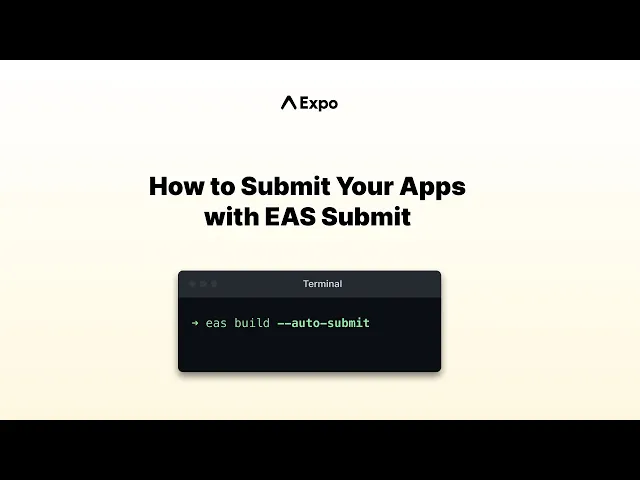
EAS Submit makes it easy to publish your apps to the App Store and Play Store with a simple command.
How EAS Submit works
Android (Google Play Store)
EAS Submit uploads your .aab to Google Play Console and places it in the track you choose (internal, alpha, beta, or production). For a brand-new app, the default eas submit command creates the first release on the internal testing track, even before you complete the store listing. To distribute beyond internal testing, finish the setup tasks in Play Console and promote the release. To upload a build without rolling it out to its track, set releaseStatus to draft in eas.json.
iOS (Apple App Store)
EAS Submit uploads your .ipa to App Store Connect, where it becomes available in TestFlight after processing (usually 10-15 minutes). A TestFlight build is not automatically released to the App Store. To ship it to production, sign in to App Store Connect, complete the app metadata and screenshots, select the build, and submit it for App Review.
When to use EAS Submit
Choose a submission path
Recommended. Upload your Android build to Google Play Console with a single command, from your computer or CI.
Recommended. Upload your iOS build to App Store Connect and TestFlight from any OS, including Windows and Linux.
Follow a step-by-step Play Console walkthrough to create your Android app's first release.
Build, archive, and upload an iOS app to App Store Connect using Xcode on macOS.
Expo Skills for AI agents
If you use an AI agent, install Expo Skills to teach it how to submit and release your app:
Build and submit iOS and Android apps with EAS to TestFlight, the App Store, or Google Play.
Frequently asked questions
Can I submit builds that were not built with EAS Build?
Yes. EAS Submit accepts any valid .aab (Android App Bundle) or .ipa (iOS App Archive) file.
For builds created with EAS Build, run eas submit and select a build from the list or let it use the latest build automatically.
For local builds, use the --path flag to specify the binary:
The binary must be correctly signed. For Android, this means an upload keystore. For iOS, this means a distribution certificate and provisioning profile.
Does EAS Submit handle store metadata or screenshots?
EAS Submit uploads your binary but does not manage store listing metadata, screenshots, or release notes.
For Google Play Store, configure your store listing directly in Google Play Console before submitting.
For Apple App Store, you can use EAS Metadata to automate app information and localized descriptions.
How do I know why my submission failed?
Open the submission details page in the EAS dashboard:
- Read the logs on the submission details page to understand the error.
- Look for a "Build Annotations" bubble — these highlight common failure reasons and suggested fixes directly in the logs.
Can I use EAS Submit inside EAS Workflows or from other CI/CD pipelines?
Yes. EAS Submit works in CI environments and integrates with EAS Workflows. You can add a submit job to your workflow configuration. For example:
jobs:
  submit_ios_to_store:
    type: submit
    needs: [build_ios]
    params:
      build_id: ${{ needs.build_ios.outputs.build_id }}
For more information, see EAS Workflows pre-packaged jobs.
For CI pipelines, you can also use the --non-interactive flag to skip prompts and --latest to automatically select the most recent build:
With --non-interactive, EAS Submit cannot prompt you for a Google Service Account key or an App Store Connect API Key. Set up the key for your app first, as described in Submit to Google Play Store and Submit to Apple App Store.